Installing & Configuring the JAMS Cross-Platform Client
The JAMS Cross-Platform Client provides command-line access to the JAMS Scheduler using multiple platforms. It allows users to execute JAMS commands via scripting and the command line by leveraging the JAMS REST API.
Requirements
To work with the JAMS Cross-Platform Client, you will need to meet the two requirements below:
- Have a valid URL to an installed version of the JAMS REST API.
- A login account with the appropriate permissions for a JAMS Server instance, from which the client can authenticate against multiple JAMS server.
Prerequisites
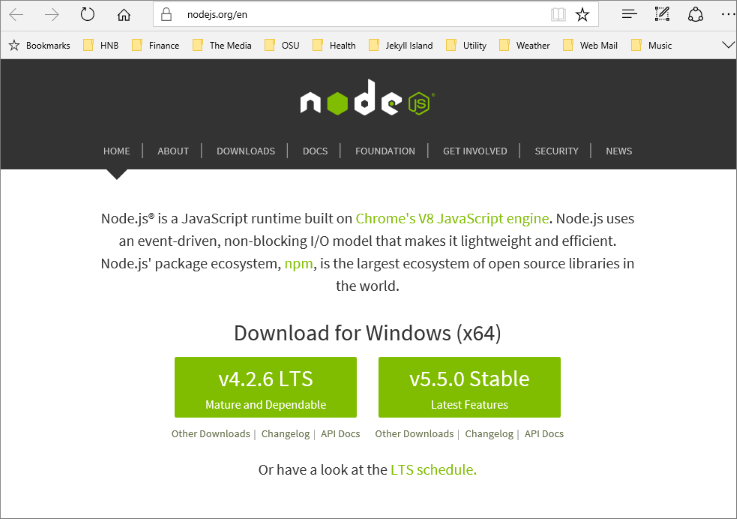
To get started, install the JavaScript runtime node.js at http://nodejs.org and download the latest version of 4.2.x or 5.5.x. The current version has been tested against versions 4.2.6 and 5.5.0.
Configuration Process
To install the JAMS Cross-Platform Client globally onto your local machine, open the command prompt and enter the following command:
npm install jams -g
Excluding the global parameter (-g) will install the client in the following location:<current directory>\node_modules\jams
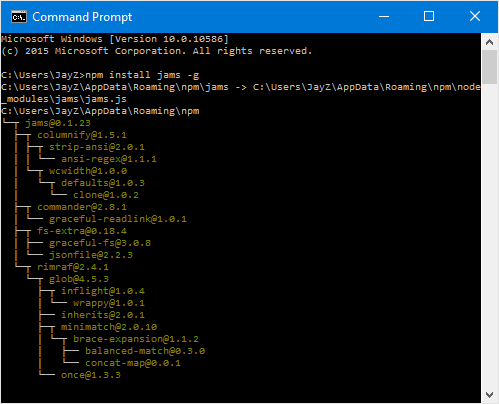
The client should be installed globally if it is to be executed from the command line. Otherwise, commands will be executed from within the node_modules/jams directory of the installed location.
Unix-based Systems
If you are installing locally on a Unix-based system, client commands must be invoked by "./jams.js" instead of "jams" (see the example below). This is not necessary if the client is installed globally.
Global Installation Example
jams login -u user123 -p password123
Local Installation Example
./jams.js login -u user123 -p password123
Next, enter the command below to set the active JAMS REST API location for the client.
jams set admin -n server -s (url of JAMS REST API)
If utilizing a non-standard HTTP/HTTPS port, ensure the URL is updated as such.
If port is defined as 1234, the API URI must must be referenced as:
http://myserver:1234/JAMS/api
Set Active JAMS REST API Example
jams set admin -n server -s http://myserver.1235/JAMS/api

The admin server setting can be overwritten with a -r parameter at command execution.
The client can only be authenticated with one server at a time. Changing servers requires a login prior to any command execution.
Setting the active JAMS REST API Example
jams login -u user123 -p password123 -r http://myserver.1235/jams/api
jams submit-u user123 -n /Tests/123 -r http://myserver.1235/jams/api
The client can only be authenticated with one server at a time. Changing servers requires a login prior to any command execution.
Commands
All the commands listed below are accessible from a terminal window or a command prompt.
Usage
jams [optional action] [command] [parameters]
Options
-h,--help Output usage information
-V,--version Output the version number
-v,--verbose Display Verbose information
-r,--server Override default JAMS server with defined location
Help Displays contextual help for client commands.
Usage
jams -h <command>
Displays main help menu
jams –h
Displays help for submit command
jams –h submit
Login
Connect to the JAMS Scheduler
Usage
jams login -u <username> -p <password>
Login Command Example
jams login -u testuser -p password123
Logout
Disconnect from the JAMS Scheduler
Usage
jams logout
Submit
Submit a job to the JAMS Scheduler
Usage
jams submit -n <job name> [-d <date>] [-t <time>] [-q <batch queue>] [-a <agent node>] [-p <priority>] [-o]
JAMS Submit Command Examples
jams submit -n \Samples\Test123
jams submit -n \Samples\Test123 -s 12/11/2016 -t "03:50:00 PM" -q "queueABC" -a
"node123" -p 1 -o
Entry
Display or manage JAMS Job entries
Usage
jams get|hold|release entry [-i <entry id>] [-a <audit comment>]
JAMS Entry Command Examples
jams get entry -i 12345
jams hold entry -i 12345 -a "Sample Comment"
jams release entry -i 12345 -a "Sample Comment"
Parameter
Display or manage JAMS entry parameters
Usage
jams get|set parameter* [-i <entry id>] [-n <parameter name>] [-s <*parameter value>]
JAMS Parameter Command Examples
jams get parameter -i 12345
jams get parameter -i 12345 -n JAMSTraceLevel
jams set parameter -i 12345 -n JAMSTraceLevel -s "On"
Variable
Display or manage JAMS Variables
Usage
Usage jams get|set variable [-n <name>] [-s <value>]
JAMS Variable Command Examples
jams get variable
jams get variable -n testvalue
jams get variable -n testvalue -s testABC
Admin
View or modify JAMS Client settings
Usage
jams get|set admin [-n <name>] [-s <value>]
JAMS Admin Command Examples
jams get admin
jams get admin -n server
jams set admin -n server -s http://localhost:62405/api
Usage Notes
A user must login prior to executing all commands save admin functions.
Usage
jams login -u <username> -p <password>
Submitting a Job
Submitting a Job (Unix/Linux) Example
jams submit -n //Test//Job123
Submitting a Job (Windows) Example
jams submit -n /Test/Job123
